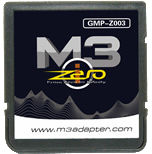
M3i Zero [GMP-Z003]
m3adapter.com
Cart Info
The M3i Zero is the last slot-1 flashcart from the M3 Adapter team. The M3 team disappeared around 2011, and the Sakura kernel hasn't been updated since then. That means some games released later on in the DS lifecycle don't actually boot in the Sakura/Touchpod kernel, due to missing compatibility patches. To fix this issue, it's recommended to run Pico-Launcher as a replacement kernel, or at least keep it around as a secondary kernel.
While this cart does support SDHC SD cards, Sakura/TouchPod has issues with cards that are 64GB or larger. The nds loader will simply refuse to load games, or load the game but crash/freeze soon after. However, Pico-Launcher handles 64GB and larger cards just fine when configured as the primary kernel.
Setup Guide:
Kernel Info
Pico-Launcher is the game menu for the DSpico (an open source DS flashcart by the LNH team) and other supported carts. Combined with Pico-Loader, it can be used as a full kernel, and supports almost all retail DS games. It features a material-inspired user interface, and an extremely fast loader.
Soft-Reset & RTS Not Supported
Note that Pico-Launcher/Loader currently does not support soft-reset or RTS. If this is important to you, consider using Sakura.
-
Format the SD card you are using by following the formatting tutorial.
-
Download the latest Pico Package for M3i Zero GMP-Z003.
- Currently updated to Pico-Launcher
v1.3.0and Pico-Loaderv1.7.1
- Currently updated to Pico-Launcher
-
Extract the
pico_package_G003.zipfile with 7-Zip, or your native file manager app. Then, copy the contents into the root of your SD card. -
If you'd like to be able to use cheats on your games, download a cheat database.
-
You will need the
usrcheat.datfile from the download link in the post. Copy this file into the_picofolder on your SD card. -
Create a
Gamesfolder in your SD card root, and place any.ndsgame ROMs you'd like to play inside. -
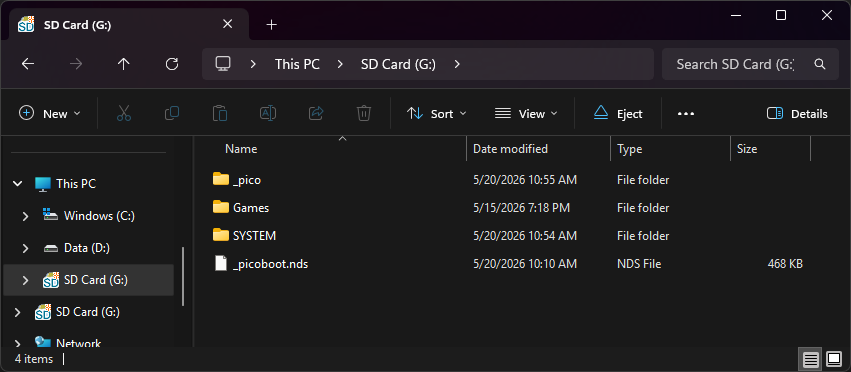
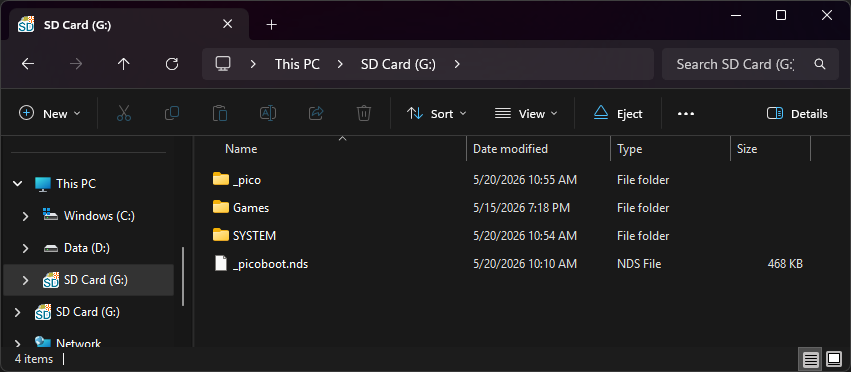
The files on your SD card should now look like this:
-
Insert the SD card back into your cart, plug the cart into your DS, and see if it boots into the menu.
Post-Setup Enhancements
Emulators
To emulate retro consoles like GBA, GB/C, NES, and others, you will need to add emulators and configure their file associations for Pico-Launcher to display retro ROMs in the menu.
Game Covers
Pico-Launcher supports showing game covers in cover flow layout mode, and on the top screen in icons mode. You will need to add cover images to your SD card to use this feature.
PicoCover TwilightBoxart PicoDex
To create your own custom covers for Pico-Launcher, check out the cover creator. Save each cover in the _pico/covers/user folder on your SD card, named after its ROM file plus .bmp (for example, MyGame.nds.bmp).
Themes
Looking to customize your DSpico interface? Check out the Pico themes repository:
To create your own custom themes for Pico-Launcher, check out the themes creator:
Sakura Kernel
Sakura is the official kernel of the M3 DS Real and M3i Zero. It's based on Moonshell 2, with a custom NDS loader. It also offers a couple unique features like RTS (Real-Time-Save), not found in YSMenu. Because it's based on Moonshell2, it also provides media playback directly in the kernel menu, which can be pretty convenient. This tab will help you setup Sakura with Pico-Launcher, so that you can use Sakura as primary and fallback to Pico-Launcher when necessary, for games that don't load in Sakura.
-
Format the SD card you are using by following the formatting tutorial.
-
Download the Sakura 1.49a kernel.
-
Extract the contents of the Sakura zip to your SD card's root. (It should just be a single
SYSTEMfolder) -
If you'd like to be able to use cheats on your games in Sakura, download a cheat database.
-
You will need the
cheat_EN.dbfile from the download link in the post. Copy it into theSYSTEMfolder on your SD card. -
Also grab
usrcheat.datfrom the same source, which will be used by Pico-Launcher for game cheats. -
Next, we'll be adding Pico-Launcher to the setup.
-
Download the latest Pico Package for M3i Zero GMP-Z003.
- Currently updated to Pico-Launcher
v1.3.0and Pico-Loaderv1.7.1
- Currently updated to Pico-Launcher
-
Extract the
pico_package_G003.zipfile with 7-Zip, or your native file manager app. -
From within the extracted files, copy the following files/folders to your SD card root:
-
_picofolder -
_picoboot.nds
-
-
Download this
Boot_Pico.ndsnds-miniboot binary and also place it on the SD card root. (Sakura will refuse to boot_picoboot.ndsdirectly, since it doesn't have a passme header.) -
Copy the
usrcheat.datfile you downloaded earlier into the_picofolder on your SD card. -
Create a
Gamesfolder in your SD card root, and place any.ndsgame ROMs you'd like to play inside. -
The files on your SD card should now look like this:
-
Place the SD card back into the cartridge, and boot it up. You'll be asked to select between TouchPod or Sakura, choose whichever you prefer. You can change this later. When you want to use Pico-Launcher, simply launch
Boot_Pico.ndsin Sakura/Touchpod.