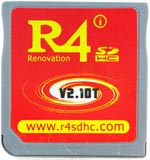
R4i SDHC Renovation V2.10T & V2.20T
r4sdhc.com / R4i SDHC T on PCB
Cart Info
These carts are very old demon-hardware DSTTi clones, and have a special quirk - they load part of the cart's firmware from a file on the SD card - _DS_MENU.DAT. When the _DS_MENU.DAT file is present on the SD, it will behave like a normal demon DSTT clone - checks for an R4.dat to load, and shows MENU? if the file isn't found. If the SD card is empty however, the cart will load to a white screen.
Setup Guide:
Kernel Info
Pico-Launcher is the game menu for the DSpico (an open source DS flashcart by the LNH team) and other supported carts. Combined with Pico-Loader, it can be used as a full kernel, and supports almost all retail DS games. It features a material-inspired user interface, and an extremely fast loader.
Soft-Reset Not Supported
Note that Pico-Launcher/Loader currently does not support soft-resetting to the game menu. If this is important to you, consider using YSMenu.
-
Format the SD card you are using by following the formatting tutorial.
-
Download the latest Pico Package for DSTT.
- Currently updated to Pico-Launcher
v1.3.0and Pico-Loaderv1.7.1
- Currently updated to Pico-Launcher
-
Extract the
pico_package_DSTT.zipfile with 7-Zip, or your native file manager app. -
From within the extracted files, copy the following files/folders to your SD card root:
-
_picofolder -
_picoboot.nds -
r4.dat
-
-
Download the
_DS_MENU.DATfile for V2.10T/V2.20T carts and place it on your SD card root. -
If you'd like to be able to use cheats on your games, download a cheat database.
-
You will need the
usrcheat.datfile from the download link in the post. Copy this file into the_picofolder on your SD card. -
Create a
Gamesfolder in your SD card root, and place any.ndsgame ROMs you'd like to play inside. -
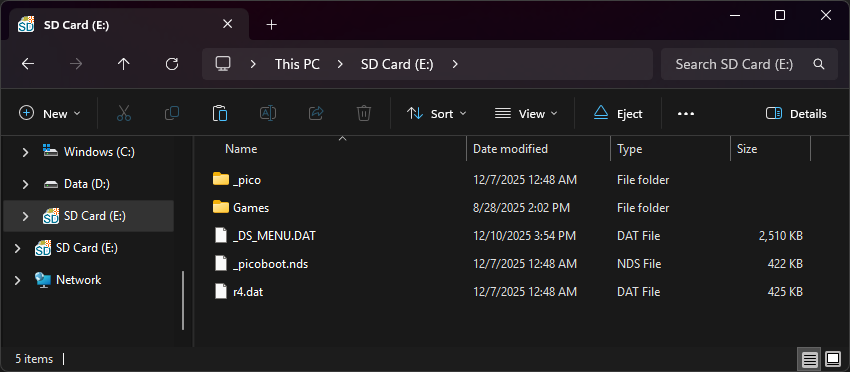
The files on your SD card should now look like this:
-
Insert the SD back into the cart, plug the cart into the DS, and see if it boots into the menu.
Post-Setup Enhancements
Emulators
To emulate retro consoles like GBA, GB/C, NES, and others, you will need to add emulators and configure their file associations for Pico-Launcher to display retro ROMs in the menu.
Game Covers
Pico-Launcher supports showing game covers in cover flow layout mode, and on the top screen in icons mode. You will need to add cover images to your SD card to use this feature.
PicoCover TwilightBoxart PicoDex
To create your own custom covers for Pico-Launcher, check out the cover creator. Save each cover in the _pico/covers/user folder on your SD card, named after its ROM file plus .bmp (for example, MyGame.nds.bmp).
Themes
Looking to customize your DSpico interface? Check out the Pico themes repository:
To create your own custom themes for Pico-Launcher, check out the themes creator:
Kernel Info
YSMenu is a simple, fast, and stable kernel, featuring a menu UI resembling the original R4. It's a great choice for most DSTT-based flashcart users, and has near-perfect compatibility with unmodified retail DS roms.
Note that YSMenu has issues with some romhacks - the loader will not recognize the romhack in its patch database, causing it to throw errcode -4 when attempting to load it.
-
Format the SD card you are using by following the formatting tutorial.
-
Download the V2.10T/V2.20T YSMenu 7.06 package.
-
Next, extract the contents of the downloaded kernel zip to your SD card.
-
Place any
.ndsgame ROMs you'd like to play into theGamesfolder. -
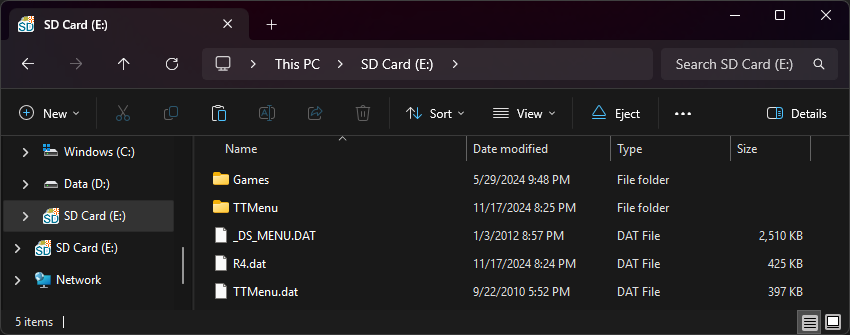
The files on your SD card should now look like this:
-
Insert the SD back into the cart, plug the cart into the DS, and see if it boots into the menu.
Post-Setup Enhancements
Emulators
To emulate retro consoles on your DS like GBA, GB/C, NES, and others, you will need to download emulators.
Themes
Looking to customize your menu? Check out the YSMenu themes repository: