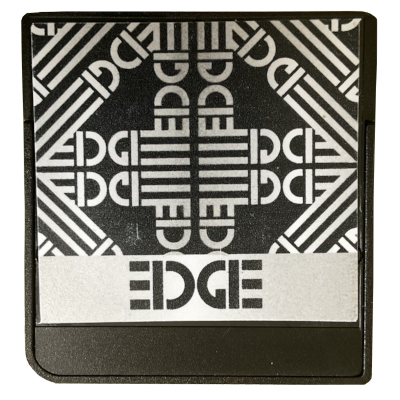
EDGE
edge-ds.cn
Cart Info
This cart is a cut-down version of the CycloDS Evolution. The two share similar kernels and hardware, but the EDGE is missing a couple features exclusive to the CycloDS, like RTS. This entire cart family is fairly obscure hardware, so unfortunately, not many loader options currently exist. EDGE OS and nds-bootstrap + AKNext/TWiLight are the only currently usable options.
Kernel Info
Since using nds-bootstrap is required to load some newer titles that don't load on the stock kernel, the setup guide below will cover adding both EDGE OS and an nds-bootstrap frontend - AKMenu-Next or TWiLight Menu++. Autobooting AKMenu-Next or TWiLight isn't possible, since the EDGE doesn't have autoboot functionality and we don't have a bootstrap binary available for this cart currently.
Setup Guide:
-
Format the SD card you are using by following the formatting tutorial.
-
Download the EDGE OS 2.3 kernel.
-
Open/extract the zip file, and copy the contents into the root of your SD card.
-
If you'd like to be able to use cheats on your games, download a cheat database.
-
Download the
cheats.datfile from the download link in the post. -
Create an
EDGEfolder on your SD card root. Copycheats.datinto theEDGEfolder you created. -
Next, create a
Gamesfolder on your SD card root, and place your.ndsgame ROMs inside.- You can also create additional folders to help with organizing/categorizing your ROMs.
-
Next we will add AKMenu-Next for nds-bootstrap support.
-
Download the latest release of AKMenu-Next Flashcart Edition.
-
Extract the downloaded
akmenu-next-flashcart.zipfile with 7-Zip. -
From within the AKMenu-Next files, copy the following files/folders to your SD card root:
_ndsfolderBOOT.NDS
-
Download the latest release of nds-bootstrap.
-
Extract the
nds-bootstrap.zip, and copy the contents into the_ndsfolder on your SD card. -
AKMenu-Next/nds-bootstrap also supports cheats. Open the cheats database thread again.
-
Download the
usrcheat.datfile from the download link in the post. Copy this file to_nds/akmenunext/cheats/on your SD card. -
The files on your SD card should now look like this:
-
Insert the SD card back into your cart, plug the cart into your DS, and see if it boots into EDGE OS menu.
-
To use AKMenu-Next, launch
BOOT.NDSin the menu.
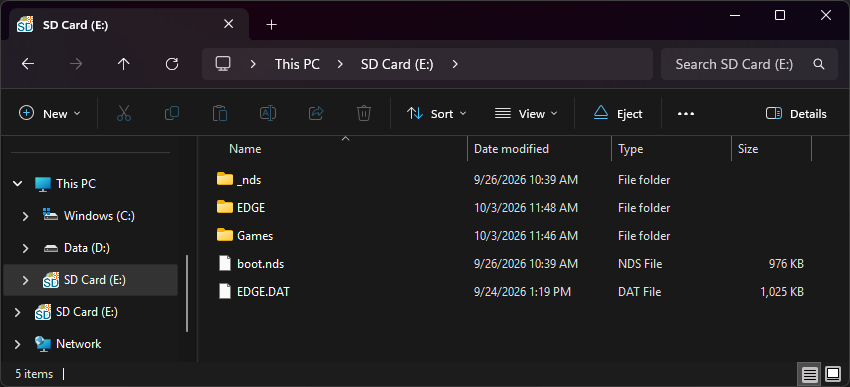
Post-Setup Enhancements
Emulators
To emulate retro consoles on your DS like GBA, GB/C, NES, and others, you will need to download emulators.
For emulation on AKMenu-Next, the emulators plugin pack is available. See the docs for more info:
Game Covers
AKMenu-Next can show game covers on the top screen. To use them, select one of the included cover themes: Blue Skies Game Covers, DSpico Game Covers or Starlight Covers. Then add cover images to your SD card. Covers made for Pico-Launcher work too.
To create your own custom covers, check out the cover creator. Save each cover in the _nds/covers_name folder on your SD card, named after its ROM file without .nds (for example, MyGame.bmp).
Themes
Looking to customize AKMenu-Next? Check out the AKMenu and AKNext themes repositories:
-
Format the SD card you are using by following the formatting tutorial.
-
Download the EDGE OS 2.3 kernel.
-
Open/extract the zip file, and copy the contents into the root of your SD card.
-
If you'd like to be able to use cheats on your games, download a cheat database.
-
Download the
cheats.datfile from the download link in the post. -
Create an
EDGEfolder on your SD card root. Copycheats.datinto theEDGEfolder you created. -
Next we will add TWiLight Menu++ for nds-bootstrap support.
-
Download the latest release of TWiLight Menu++ Flashcart Edition.
-
Extract the downloaded
TWiLightMenu-Flashcard.7zfile with 7-Zip. -
From within the extracted TWiLight Menu++ files, copy the following files/folders to your SD card root:
_ndsfolderromsfolderBOOT.NDS
-
The files on your SD card should now look like this:
-
Insert the SD card back into your cart, plug the cart into your DS, and see if it boots into EDGE OS menu.
-
To use TWiLight Menu++, launch
BOOT.NDSin the menu.